
Table of contents
Calendar entry content
By default, the calendar entry contains:
-
Event name
-
Event date
-
Start and end time
-
Venue
All information is automatically pulled from the event settings.
Show and hide calendar entries
In the template editor, you can show or hide the calendar entry link using the "eye icon". For more information, see the article Fade-in or fade-out content.
Edit calendar settings
Note: The “Editable Calendar Settings” feature is subject to a fee and is not included in every eyevip license.
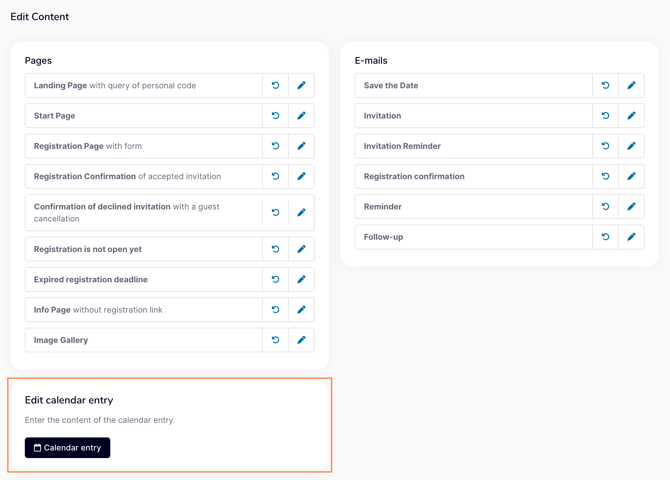
You can find the editing function under Communication > Edit content.
-
Click on the Calendar entry button.
-
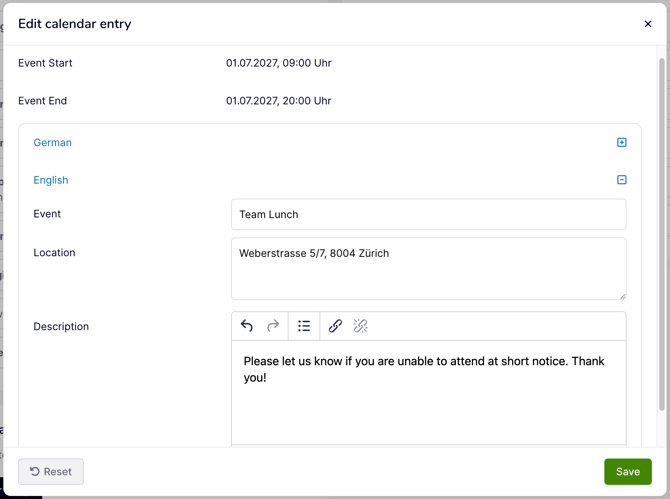
The editing window will open.
- Enter the desired content in the available fields:
- Event: Title of the calendar entry
- Location: Venue of the event
- Description: Additional information
- Click on Save.
Note: If you do not make any adjustments to the calendar entry, the information from the event settings will be used automatically.
Download calendar entries from the guest's perspective
Once your message has been sent, your guests can download the calendar entry, if you have enabled it.
To do so, they click on "Add date to calendar".
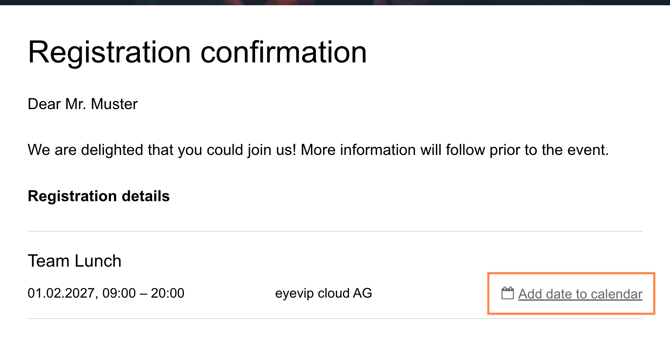
Depending on your email program, one of the following will happen:
-
The calendar entry will be saved in the “Downloads” folder.
-
Or it will be automatically opened in your default calendar.
The behavior depends on the individual settings of the respective email program.
Note: Would you like to send the calendar entry as an attachment (ICS file) with the email? Starting with the eyevip High-Flyer or Shooting Star license, this feature can be integrated and enabled or disabled for each event in the event settings. For more information, contact our support team via support@eyevip.com.
Frequently asked questions (FAQ)
Why isn't the calendar entry automatically imported into my calendar?
That depends on the settings of your email program. eyevip cannot control whether a calendar entry is imported automatically.
Can I enter additional information in the calendar entry?
Yes, with the additional “Editable calendar settings” feature. If you would like to get more information about this, please contact our support team via support@eyevip.com.
Can I send the calendar entry as an attachment?
Yes. Starting with the eyevip High-Flyer or Shooting star license, we can integrate this feature for you. This allows you to enable or disable the calendar entry as an attachment (ICS file) for each event in the event settings. If you would like to know more, please contact our support team via support@eyevip.com.